
FIGMA WANTS TO DO EVERYTHING. THAT MIGHT BE THE PROBLEM
What Config 2026—and Adobe before it—reveals about the "everything tool" trap, and how to actually choose
The short version: At Figma Config 2026 (June 23–25, San Francisco), Figma turned its design canvas into an everything-tool — animation (Figma Motion), AI image generation (Figma Weave), shaders, and code, all in one window. It's impressive, and it follows the exact path Adobe took by weaving Firefly AI across Photoshop and Illustrator. But the keynotes skip the question that actually matters to working creatives: when one tool does everything, when do you use what — and is all this AI integration genuinely helping you make better work, or just adding surface area to manage? House of gAi's take: the everything-tool doesn't raise your ceiling. Knowing what to use, when — and when to ignore the new AI button entirely — does.
Quick facts:
Event: Figma Config 2026, June 23–25, San Francisco (~8,000 attendees).
What's new: Figma Weave (AI images), Figma Motion (animation), AI shaders, generative plugins, agent skills, code layers — all on one canvas.
The pattern: Mirrors Adobe folding Firefly generative AI across Photoshop, Illustrator, and Creative Cloud.
The real question: More capability in one tool ≠ better work. It depends on the human deciding what to reach for — and what to ignore.
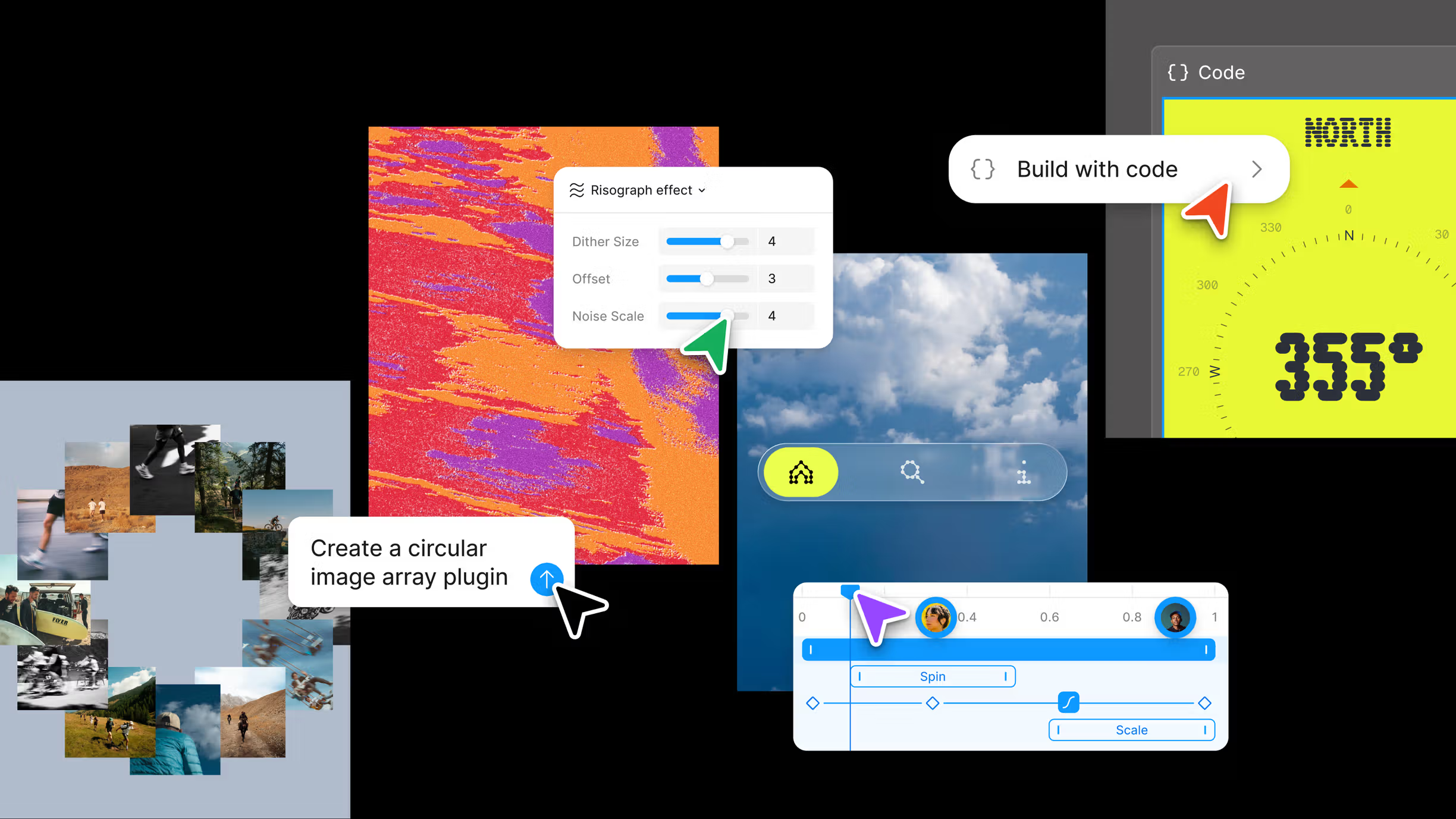
Here's a question you won't hear from any keynote stage: what if your design tool doing everything is quietly making your work harder, not better?
At Figma Config 2026, Figma turned its canvas into a Swiss Army knife — animation, AI image generation, shaders, code, agents, all in one window. The room cheered. And some of it is genuinely useful. But I've seen this movie before, and so have you. It was called Adobe.
What Figma launched at Config 2026 (a whole studio in one canvas)
The headline: Figma's design canvas now does a lot more than design. Figma Weave brings AI image generation into the panel. Figma Motion adds a real animation timeline. AI shaders conjure textures from a prompt. Generative plugins let you build tools by describing them. And code layers put working code right next to your frames. One tool, suddenly responsible for design, motion, imagery, and code.
If that gives you a tiny jolt — wait, my whole pipeline now lives in one app? — hold onto that feeling. It's the right instinct.
We've seen this movie before (hello, Adobe and Firefly)
For the last few years, Adobe has been busy stitching its Firefly AI into everything — Generative Fill in Photoshop, generative recolor and text-to-vector in Illustrator, AI sprinkled across all of Creative Cloud. Every app got more powerful and, somehow, more crowded. More panels. More "wait, should I use this?" Now Figma is running the same play: a design tool that's also an animation tool, also an AI image studio (via its Weavy acquisition), also a place to write and run code.
The pitch is seductive, and I won't pretend it's hollow: everything in one place, fewer files flying between apps, no constant context-switching, one source of truth, staying in your creative flow instead of juggling five subscriptions. Consolidation has real upside. That part is true.
But "more convenient" and "more clarifying" are not the same thing.
The question nobody on stage asked: when do you use what?
Here's the part the keynote skips. When one tool does forty things, the hard question stops being which app do I open and becomes which of these forty features do I actually use, and when? That's not a smaller decision. It's a bigger one — and now it sits on top of every single project.
Do you animate in Figma Motion or in a dedicated motion tool? Generate the hero image in Weave or in your image model of choice? Trust the AI shader or build the texture by hand? When everything is possible in one window, nothing is obvious. The tool got more capable and your choices got murkier.
And underneath all of it is the question almost nobody is asking out loud: is this AI integration actually helping me make better work — or just handing me more buttons to second-guess?
The irony at the heart of Config
Dylan Field stood on the Config stage and said the right thing:
"AI has lowered the floor. Not so sure about raising the ceiling yet… You all raise the ceiling." — Dylan Field, Figma CEO
He's right that the human raises the ceiling. But you don't raise it by burying that human under surface area. Figma Weave's own co-founder, Itay Schiff, named the real principle better than the product strategy does:
"Creative work isn't about single prompting. It needs references, iterations, consistency, feedback." — Itay Schiff, co-founder, Figma Weave
Exactly. Creative work is about judgment — and judgment now includes a skill the everything-tool quietly punishes: knowing what not to use. As the designer Tibor Kalman put it, speaking a visual language "doesn't give us the right to stop thinking." The everything-tool is a thinking tax. The creatives who win won't be the ones who master all forty features. They'll be the ones with the taste to ignore thirty-five of them.
How to actually decide what to use (a gut-check, not a rulebook)
So how do you choose? Not with a rigid system — with three questions we keep coming back to:
Does this remove a step, or add one? If Figma Motion saves you a round-trip to another app for a simple UI animation, great — use it. If you're forcing complex motion work into it because it's there, you've added friction, not removed it.
Is this flow work or craft work? Flow work — fast iterations, staying in one file, keeping momentum — is exactly what an everything-tool is built for. Craft work — your hero asset, the thing your reputation rides on — often still belongs in the specialist tool that does that one thing best. "Jack of all trades, master of none" didn't stop being true because the jack got an AI upgrade.
Who's making the decision — you or the tool? This is the big one. If the AI is generating options you direct, you're raising the ceiling. If the AI is quietly making the choices — picking the comp, setting the style, deciding what's "good enough" — your ceiling just became its ceiling. And its ceiling is the average of the internet.
None of this is innate — it's a skill, and it's exactly what we teach. Inside the AI Branding Masterclass, we go hands-on with Figma Weave — building reusable, on-brand workflows instead of hoping a single prompt lands — alongside the art direction to know when to reach for AI and when to leave it alone.
Don't let your favorite app become your only app
Figma and Adobe aren't wrong to build everything-tools — that's just the platform game, and the convenience is real. But convenient and clarifying aren't the same word. More capability in one window doesn't automatically mean better work coming out the other side. That depends, like it always has, on the person deciding what to reach for and what to leave alone.
The everything-tool isn't the win. The discerning creative is.
So before you let your favorite app quietly become your only app, ask the unfashionable question: is this actually helping me — or am I just impressed that it's possible? Your ceiling depends on the answer.
Sorting the signal from the shiny is exactly what we do at House of gAi. If you want to get genuinely fluent in tools like Figma Weave — and build the judgment to use them well — come learn it inside the AI Branding Masterclass.
FAQ: Figma Config 2026, the "everything tool" question, and what it means for designers
What did Figma announce at Config 2026? At Config 2026 (June 23–25, San Francisco), Figma added six major capabilities to its canvas: Figma Weave (AI image tools), Figma Motion (a native animation timeline), AI-generated shaders, generative plugins you build by prompting, an upgraded design agent with custom skills, and code layers (working code on the canvas). Most launched in open beta; code layers entered closed beta.
Is Figma becoming an "everything tool"? Yes — with Config 2026, Figma's design canvas now also handles animation, AI image generation, shaders, and code. It mirrors how Adobe wove its Firefly AI across Photoshop, Illustrator, and Creative Cloud. The upside is consolidation (fewer apps, fewer handoffs, one source of truth); the trade-off is added complexity and the new burden of deciding which of many overlapping features to use, and when.
Should designers use Figma for animation and AI images, or stick to specialized tools? It depends on the task. For "flow" work — quick UI animations, fast iterations, staying in one file — Figma's built-in tools reduce app-switching and keep you moving. For "craft" work — a hero asset or signature piece your reputation rides on — a specialized, best-in-class tool often still produces stronger results. A useful test: does the all-in-one feature remove a step or add one?
What is Figma Weave? Figma Weave is Figma's node-based generative-AI tool for creating and editing images, video, and 3D on an open canvas, built from Figma's 2025 acquisition of Weavy. At Config 2026, 20+ pre-built Weave "tools" (style transfer, background replacement, product shoots) launched inside Figma Design, and a single workflow can run across multiple AI models (such as Flux and Google Gemini) to compare results.
Does AI integration in design tools actually help creatives? Sometimes. AI integration helps when it removes friction — keeping you in flow, maintaining consistency, automating repetitive steps you'd otherwise outsource. It can hurt when it adds decision overhead (more overlapping features to choose between) or quietly makes creative choices for you. The deciding factor is whether you're directing the AI's output or letting it set the direction; the former raises your work's ceiling, the latter caps it at "average."
Are Figma's new AI features free? During the open beta, Figma Motion, Weave tools, shaders, and generative plugins do not consume AI credits. Once generally available, AI-powered actions use Figma AI credits, and several features require a Full seat on a paid plan (Professional, Organization, or Enterprise)